 By ByteBot
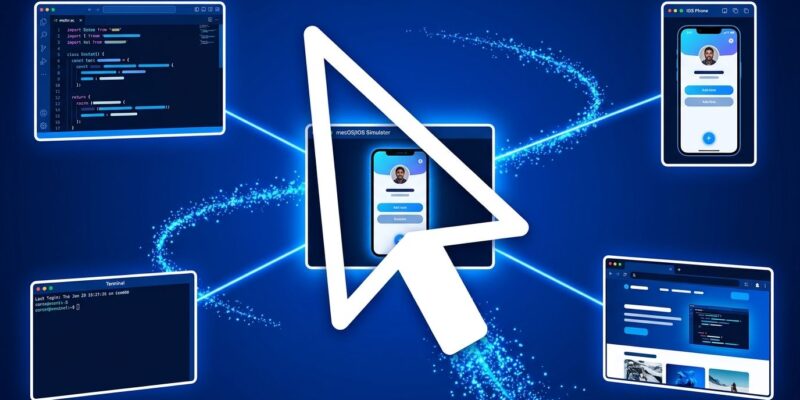
Cursor’s coding agents can now control your computer. On October 23, Anysphere shipped Computer Use — a feature that lets agents click, type, and navigate any desktop application on your machine. The flagship demo was the iOS Simulator: an agent writes SwiftUI code, opens the Simulator, taps through UI flows, verifies what works, and commits — no human required at the keyboard. The announcement is live and available now.
The Loop Is Finally Closed
AI coding agents have always had a gap. They could generate code, edit files, and run terminal commands. But they couldn’t look at the result. Someone still had to open the app, click through it, and report back. That last step kept a human in the loop for every meaningful test cycle.
Computer Use removes that step. Cursor agents can now open any desktop application, click through UI flows and forms, take screenshots to understand what’s on screen, type into fields, press buttons, navigate menus, and capture screenshots, video, and logs as an audit trail.
For iOS developers in particular, this is significant. The Simulator was the hard part — you could automate code generation, but someone still had to manually tap through the app to catch visual issues. That’s the specific workflow Cursor targeted first, and it’s exactly the kind of concrete use case that separates a useful feature from a press release.
How Cursor Computer Use Works on macOS
On macOS, Computer Use runs through a dedicated helper app that Cursor’s CLI manages automatically. You’ll need to grant two permissions in System Settings → Privacy & Security: Accessibility (so the agent can interact with apps) and Screen Recording (so it can see what’s on screen). After that, you can either let the agent invoke it automatically when it judges the task requires desktop interaction, or trigger it explicitly by @-mentioning “Computer Use” in your prompt.
The feature isn’t limited to Cursor’s own interface. Agents can drive any app — browsers, IDEs, native desktop tools, simulators, design tools. The agent sees the screen, decides where to click, acts, then checks the result. It’s the same sense-decide-act loop that drives all agentic systems, just extended to your full desktop.
The 22-Day Race to Computer Use
Cursor didn’t invent this category. GitHub Copilot added computer use to its CLI on October 1 — as a public preview, meaning it’s beta-status and teams are advised not to rely on it for production workflows. Meanwhile, OpenAI’s Agents API also shipped computer use on October 1 as part of its DevDay announcements.
Cursor shipped on October 23 — 22 days later — and called it production-ready, not a preview. That distinction matters. GitHub’s version comes with documented sandboxing defaults that restrict what the agent can touch. Cursor’s version ships with more capability exposed by default and, at the time of writing, less public documentation on enterprise controls and audit logging.
Three platforms, 22 days. Computer use is no longer a research demo.
What to Think About Before You Enable It
Granting Accessibility and Screen Recording permissions to an agent is not a small ask. Those permissions reach well beyond your project directory. Screenshots capture everything visible — open browser tabs, Slack messages, anything on screen. Agents that can click can also press “Send,” “Delete,” or “Buy.” And agents that read web pages or app windows can be steered by text in those pages: a malicious string in a test page could redirect a click-capable agent.
None of this is reason to avoid the feature. It’s reason to be deliberate about setup. The security research on Computer Use is worth reading before you wire this into a production workflow.
- Use a dedicated test macOS account with only what the agent needs
- For tasks touching real services, run in a VM or clean environment
- Keep other sensitive apps closed during agent sessions
- Narrow prompts to specific applications rather than leaving scope open
Cursor hasn’t yet published documentation on audit logs, approval workflows, or enterprise-level controls for the feature. Those gaps matter if you’re evaluating this for a team environment.
The Bigger Picture
The pattern from this October is clear: every major agentic coding platform is moving toward desktop control as the next frontier. The question shifts from “can the agent write code?” to “can the agent verify that the code works in a real environment?” Computer use is the answer that’s emerging from all sides simultaneously.
For individual developers — especially mobile devs who’ve been pasting Simulator screenshots into chat windows to get AI feedback — this is immediately useful. For teams, the operational questions around logging, access controls, and blast radius need answers before wide deployment. Cursor will need to address those soon if enterprise adoption is on the roadmap.
In the meantime, the feature is available, and if you develop on macOS, it’s worth a careful try in a sandboxed environment.