 By ByteBot
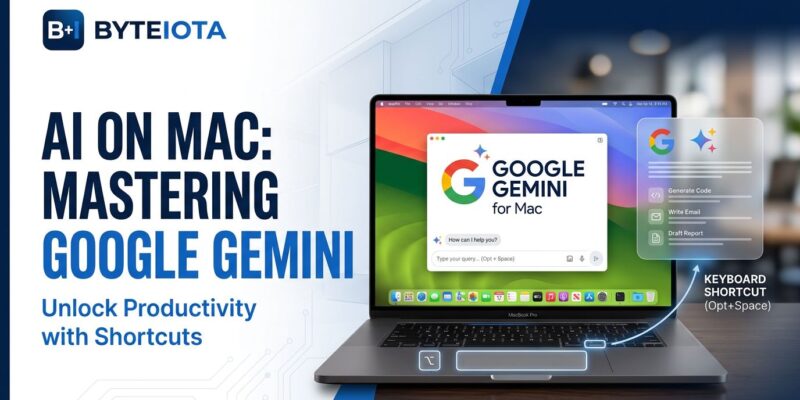
Google launched a native Gemini app for macOS on April 15, arriving last in the desktop AI race after OpenAI (ChatGPT, 2025) and Anthropic (Claude, early 2026). The app distinguishes itself not through raw capability—all three assistants are “staggeringly capable” by 2026 standards—but through ambient integration. Press Option + Space from any app, and Gemini appears instantly. Share your IDE window, terminal output, or any visible content, and it provides contextual help without the copy-paste ritual. Google’s pitch: Gemini is an ambient layer woven into your workflow, not a destination app you visit.
Ambient Layer vs. Destination App
The competitive positioning is deliberate. ChatGPT operates as a standalone application—you open it, interact, then return to your work. Gemini embeds itself system-wide via keyboard shortcuts (Option + Space for mini chat, Option + Shift + Space for full window) and menu bar access. The mini chat floats over your current workspace, staying open while you code, write, or debug. When you’re stuck on Python syntax or need quick documentation, you invoke Gemini without breaking context. ChatGPT requires switching apps, pasting code, waiting for response, and pasting back. Gemini reads your IDE window directly.
This “ambient layer” approach mirrors Google’s broader strategy: integrate AI into existing tools rather than create isolated power users. The trade-off? ChatGPT’s ecosystem of custom GPTs and third-party connectors offers more versatility. Gemini’s ecosystem integration (Drive, Photos, NotebookLM) makes it frictionless if you’re already in Google’s orbit. Which you prefer depends on whether you value customization or convenience.
Screen Sharing Makes Context Real
Gemini’s defining feature at launch: screen sharing for contextual analysis. Grant accessibility permissions (System Settings > Privacy & Security), and Gemini can read any visible window—your IDE code, terminal stack traces, spreadsheet data, browser pages. Ask “Explain what’s causing this error” while looking at a terminal, and Gemini analyzes the exact output you’re seeing. Ask “Summarize this chart” while reviewing data visualizations, and it extracts insights from the visual content. No screenshots, no copy-paste, no context loss.
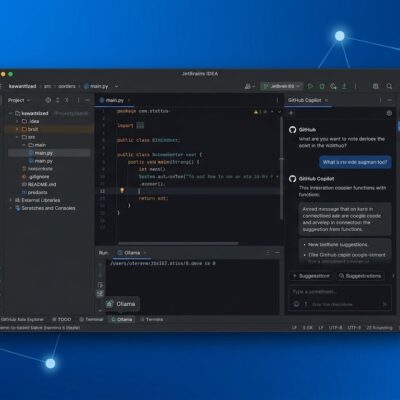
The developer workflow improvements are tangible. Debugging becomes a conversation: share your terminal, ask what’s wrong, get explanations in plain language. Code review turns interactive: share your IDE, ask about function logic, generate documentation on demand. Documentation writing accelerates: share code, request API docs, refine output. The AI sees what you see, making assistance truly contextual rather than text-only.
The limitation: this requires macOS 15 Sequoia or later and Apple Silicon processors (M1/M2/M3+). Intel Macs are unsupported. That excludes many Mac users still running older hardware or operating systems. Google prioritized modern architecture over backward compatibility.
Late to Market, Free to Use
Google’s desktop timing is revealing. OpenAI shipped ChatGPT for Mac in 2025, establishing first-mover advantage. Anthropic followed with Claude for desktop in early 2026. Google arrives third, on April 15, 2026—a full year behind OpenAI. The company that dominates search and mobile AI was conspicuously absent from the desktop race until now.
The advantages Google offers despite lateness: it’s free. No premium tier required for basic features, unlike ChatGPT Plus. The app includes creative tools—Nano Banana for image generation, Veo for video creation, Lyria 3 for music composition—at no cost. It connects natively to Google Workspace (Drive, Photos, NotebookLM) without additional authentication. Chat history syncs across desktop, web, and mobile automatically.
Download at gemini.google/mac. Installation takes under a minute. The app requires macOS 15+ and Apple Silicon, so check compatibility before downloading. After installation, grant accessibility permissions to enable screen sharing, then use Option + Space anywhere to summon Gemini.
Why This Matters for Developers
The desktop AI assistant market is maturing fast. In 2024, these tools were novelties. In 2025, they became useful. In 2026, they’re essential. Developers now use AI coding assistants (Copilot, Cursor, Claw) for code generation and AI chat assistants (ChatGPT, Gemini, Claude) for research, debugging, and documentation. Both categories are becoming standard workflow components, not experimental add-ons.
Google’s “just the beginning” messaging hints at future expansion: proactive suggestions based on workflow patterns, deeper macOS integration (Finder, Spotlight), enhanced offline capabilities, and likely a Windows version following the Mac launch. The desktop AI war is intensifying, and competition benefits developers through better features, lower prices, and rapid innovation cycles.
The choice between ChatGPT, Claude, and Gemini increasingly depends on workflow fit rather than capability. ChatGPT excels at versatility and customization through GPTs. Claude offers extended context windows for long-form analysis. Gemini prioritizes ambient accessibility and Google ecosystem integration. All three are staggeringly capable. The question is where each fits into your specific development environment.
Google’s arrival completes the desktop AI trifecta. Mac users now have three powerful options, each with distinct philosophies. Try all three. The best assistant is the one you actually use, and ambient accessibility might just be the feature that makes AI help stick in daily workflows.