 By ByteBot
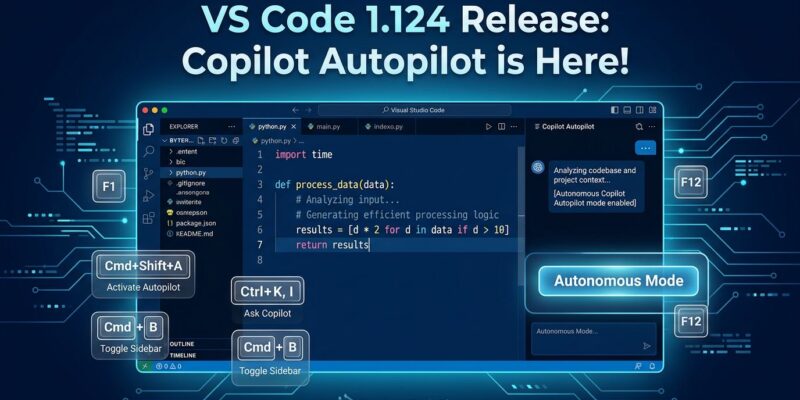
VS Code 1.124 shipped on June 10 and changed something fundamental without making much noise about it: Copilot Autopilot is now enabled by default. If you run VS Code with auto-update turned on — which most developers do — the next time you opened a Copilot chat session, your agent started operating in fully autonomous mode. No opt-in prompt. No migration dialog. The default just changed.
Autopilot means the agent writes files, executes terminal commands, calls tools, and auto-responds to any prompts those tools raise without stopping to confirm with you at each step. Microsoft’s own security documentation puts it plainly: Autopilot “reduces your ability to review intermediate steps.” That’s not a warning buried in a footnote — it’s worth reading before you run Autopilot in an unfamiliar codebase.
What Changed and How to Configure It
The setting controlling this behavior is chat.permissions.default. Before 1.124, it defaulted to standard (interactive) mode. Now it defaults to autopilot. To revert to interactive mode, open your settings and set chat.permissions.default to default or manual. You can also change the permission level mid-session directly from the chat input box without touching settings at all.
Enterprise teams have a separate lever: chat.tools.global.autoApprove controls organization-level Autopilot visibility, letting admins lock down autonomous mode across all instances.
This is the second time in two months that Microsoft has shipped a default-on change that alters developer workflow without explicit communication. The April 2026 update automatically added a “Co-authored-by: Copilot” trailer to every Git commit, which caused enough backlash — polluted histories, compliance flags, trust issues — that Microsoft reversed it to opt-in within days. The Autopilot default may be more defensible technically, but the pattern is the same: millions of developers encounter a behavior change they didn’t ask for.
Advanced Autopilot: The Three-Loop Cap
1.124 also ships a new mode called Advanced Autopilot, and it’s worth enabling if you’re running long, multi-step agent tasks. Standard Autopilot decides when a task is done using a simple task_complete signal from the agent. Advanced Autopilot replaces that with a secondary utility model that reads the full session transcript and makes the determination independently.
The hard ceiling: Advanced Autopilot caps autonomous loops at three iterations regardless of what the utility model decides. After three loops, the agent stops and waits for input. This prevents the runaway loop problem — where an agent chases its own tail fixing and re-breaking the same issue — and gives you a natural checkpoint for reviewing what actually happened.
Enable it with chat.autopilot.advanced.enabled. While it’s running, VS Code surfaces the agent’s current goal in a tooltip above the chat so you always know what it’s working toward. The official VS Code 1.124 release notes cover the full Advanced Autopilot configuration options.
Background Sessions and Keyboard Navigation
The more immediately useful improvements in 1.124 are the session management upgrades. Background sessions let you submit an agent request while composing the next one: press Alt+Enter (or hold Alt and click Send) to send in the background. The session view resets immediately but retains your model selection and context — only the query text clears — so you can queue multiple tasks without waiting for each to finish.
Keyboard navigation is now comprehensive:
- Ctrl+R / Cmd+R — session Quick Pick (recently opened vs other, active pre-selected)
- Ctrl+Tab / Ctrl+Shift+Tab — back and forward through recently visited sessions
- Ctrl+1 through 9 (Cmd+1–9 on macOS) — jump directly to the Nth visible session in the grid
- Ctrl+K Ctrl+W — close all sessions at once
Layout persistence is also fixed: reloading or restarting VS Code no longer wipes the Agents window state. Sessions, positions, and context are restored automatically. The Neowin coverage of VS Code 1.124 has a solid breakdown of the Agents window improvements.
For Script Authors: The AI_AGENT Environment Variable
A smaller but genuinely useful change: the terminal environment variable for detecting agent context has been standardized to AI_AGENT=github_copilot_vscode_agent. Any terminal spawned by a VS Code agent session will have this set. If you write shell scripts that run as part of an agent workflow, you can now reliably detect that context and adjust behavior — suppress interactive prompts, use --yes flags, pipe output differently:
if [ -n "$AI_AGENT" ]; then
  # Running inside a VS Code agent session
  npm install --yes
fi
What to Do Now
First: check your version. Open the Command Palette and run “About” or run code --version in your terminal. If you’re on 1.124, Autopilot is already your default.
Second: decide if that’s what you want. If you do complex work in sensitive codebases or repositories you don’t own, switching to interactive mode is the safer call. Review the full GitHub Copilot settings reference for the complete list of permission options. If you’re already comfortable with Autopilot, enable Advanced Autopilot for long tasks — the three-loop cap makes it meaningfully more reliable than standard mode.
Third: update any shell scripts that were checking for a non-standard agent environment variable to use $AI_AGENT instead.
The VS Code 1.123 release added session sync and a 1M context window. 1.124 builds on that foundation and pushes agents closer to the kind of autonomous operation that was preview-only six months ago. Whether the default-on choice was the right call depends on your workflow — but at this point, you should be making that choice deliberately, not by accident.