 By ByteBot
Visual Studio 18.5 dropped on April 15, 2026, with a feature that changes how debugging works: the Debugger Agent. Instead of manually setting breakpoints and hunting through vague bug reports, you can now paste a GitHub issue URL, type “@debugger Why is this exception thrown?”, and get an AI assistant that walks you through a 4-stage workflow—hypothesis generation, automated instrumentation, runtime validation, and verified fixes. It’s exclusive to VS 2026, requires a GitHub Copilot subscription, and only handles reproducible bugs. But for teams drowning in issue trackers, this is the first debugging tool that validates fixes against real runtime behavior instead of static guesses.
How the 4-Stage Debugger Agent Workflow Works
The Debugger Agent operates through a structured agentic loop that replaces manual debugging guesswork. Here’s the complete workflow:
Stage 1: Hypothesis & Preparation. You describe the bug or paste a GitHub/Azure DevOps issue URL. The agent analyzes the problem, proposes root cause hypotheses, and sets intelligent breakpoints before launching your project. No more manual breakpoint guessing.
Stage 2: Active Reproduction. You trigger the bug while the agent monitors runtime state. It stays engaged throughout the reproduction steps, capturing live telemetry and debugging context automatically.
Stage 3: Real-Time Validation. As breakpoints hit, the agent examines variables and call stacks to confirm or eliminate suspected causes. This is an interactive loop—you can provide feedback or refine hypotheses based on your domain knowledge.
Stage 4: Solution & Verification. The agent proposes a precise fix at the exact failure point. After you review and approve, it reruns the debugging session to validate the solution actually works. According to Microsoft’s official blog, this approach “validates bugs against real runtime behavior instead of relying on static analysis guesses.”
Developer “Sam” (from Microsoft’s case study) summarizes the experience: “By the end of the day, Sam closes the debugger feeling focused, not worn down… less time guessing, and more time understanding.” However, there’s a catch—every debugging session consumes AI tokens, converting what used to be a standard developer task into a paid operation.
Getting Started: Enabling Debugger Agent
Using the Debugger Agent requires three things: Visual Studio 18.5 or later, an active GitHub Copilot subscription, and reproducible bugs. Here’s how to enable it:
First, update to Visual Studio 18.5 (released April 15, 2026). Open Copilot Chat and switch to “Debugger” mode using the dropdown in the lower-left corner of the chat window. That’s it—you’re ready to debug with AI assistance.
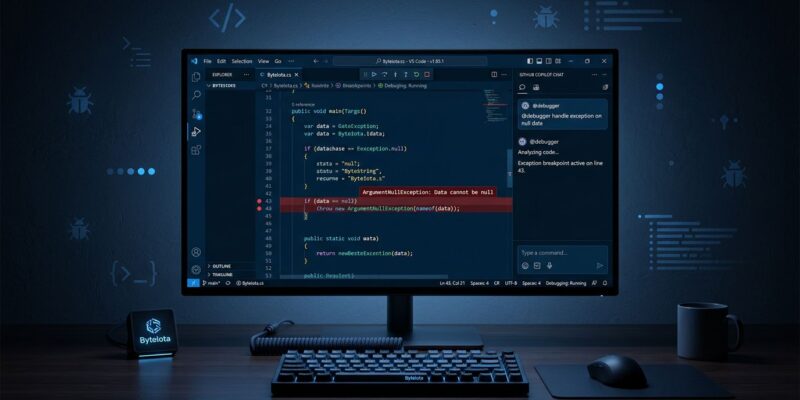
There are two ways to use the agent. Type @debugger followed by your question:
@debugger Why is this exception being thrown?
@debugger What's causing the null reference in this method?
@debugger Analyze the current call stack and explain what went wrong
Or paste a GitHub/Azure DevOps issue URL directly into Debugger mode. The agent reads the issue description, comments, and stack traces automatically, then maps the problem to your local source code. For teams with issue-driven workflows, this integration is the killer feature—automated issue-to-fix debugging with no context switching.
Real-World Example: Debugging a Null Reference Exception
Let’s walk through a typical debugging session. Imagine you’re getting a NullReferenceException in OrderProcessor.cs at line 42. You open Debugger mode and type:
@debugger Why am I getting NullReferenceException in OrderProcessor.cs line 42?The agent analyzes your code and hypothesizes: “Likely null Customer object from GetCustomer().” It sets a breakpoint at line 40 (before the exception), then prompts you to run the app and trigger the bug. As the breakpoint hits, the agent examines the Customer object state and confirms it’s null.
The agent proposes a fix: “Add null check before accessing Customer.Email.” You review the proposed code change, approve it, and the agent reruns the test to validate the fix works. The entire debugging session is summarized with clear explanations of what changed and why—no more digging through logs or guessing at edge cases.
This workflow excels for reproducible bugs where you can trigger the issue consistently. For intermittent or non-reproducible bugs, traditional logging and monitoring tools are still your best bet.
Requirements, Limitations, and When NOT to Use
Debugger Agent isn’t a universal debugging solution. It has specific requirements and clear limitations.
Requirements: Visual Studio 2026 (minimum version 17.14), active GitHub Copilot subscription, and bugs that reproduce consistently. You also need a reliable internet connection since the agent runs in the cloud.
Limitations: Token costs are the elephant in the room. As The Register pointed out: “While this sounds like a time-saver, it also converts a standard developer task into something that now costs AI tokens each time it is used.” Microsoft hasn’t published specific token pricing, but costs accumulate with frequent use. Additionally, the agent only works in VS 2026—not VS Code or older Visual Studio versions—and it can’t help with intermittent bugs that don’t reproduce reliably.
When NOT to use Debugger Agent: Skip it for simple syntax errors (manual debugging is faster and free). Avoid it for non-reproducible bugs where the agent can’t validate fixes. Don’t rely on it for security-sensitive code where AI might miss critical vulnerabilities. And if you’re an expert developer debugging under a tight deadline, manual debugging may actually be faster than waiting for the agent’s workflow.
Use Debugger Agent strategically—for complex bugs from GitHub issue trackers, legacy code investigation, and scenarios where the token cost is justified by time saved.
Developer Reception: Mixed But Promising for Specific Workflows
Early developer feedback is split. According to devclass.com (April 17, 2026), “The Debugger Agent has generated the most enthusiastic early responses from teams that do a lot of bug reproduction work from issue trackers.” These teams appreciate the automated GitHub/ADO integration and systematic debugging approach.
However, criticism exists. Visual Studio Magazine reported in February that “More AI debugging is not a top developer request. Rather, devs still want to bring back the blue theme from Visual Studio 2022.” Token cost concerns and forced auto-updates continue to frustrate developers who feel Microsoft is prioritizing AI features over basic UX improvements.
The verdict? Debugger Agent is legitimately useful for specific workflows—particularly issue-driven debugging, legacy code investigation, and junior developer guidance. But it’s not a replacement for manual debugging skills, and the token costs make it a strategic tool rather than an always-on assistant. For teams already using GitHub Copilot, the Debugger Agent is worth testing. For everyone else, evaluate whether the benefits justify the subscription cost.
Key Takeaways
- Visual Studio 18.5 (released April 15, 2026) introduces Debugger Agent—an AI-powered debugging assistant accessed via
@debuggercommand in Copilot Chat. - The 4-stage workflow (Hypothesis → Reproduction → Validation → Solution) automates breakpoint setup and validates fixes through live runtime execution, not static analysis.
- Best for: Reproducible bugs from GitHub/Azure DevOps issue trackers, complex debugging scenarios, legacy code investigation. Requires GitHub Copilot subscription.
- Limitations: Token costs apply to every debugging session, VS 2026 exclusive (not VS Code), only works with reproducible bugs, internet connection required.
- Developer reception is mixed—enthusiastic for issue tracker workflows, skeptical about token costs and prioritization over UX fixes. Use strategically, not universally.