 By ByteBot
Chrome 155 and 156 just shipped to stable, and Google’s November 2026 DevTools update delivers two features developers have been asking for: a visual editor for CSS anchor positioning and a new get_css_styles MCP tool that lets AI coding agents inspect the full CSS cascade. Neither is flashy. Both will save real debugging time.
The CSS Anchor Positioning Editor You Actually Needed
CSS anchor positioning is Baseline 2026. Chrome, Safari 26, and Firefox 147 all support it. It lets any element declare itself an anchor and any absolutely or fixed-positioned element attach to it in pure CSS — no Popper.js, no Floating UI, no ResizeObserver math. Tooltips, dropdowns, context menus, popovers: all doable without a line of JavaScript for the positioning logic.
The catch has always been position-area. The property uses a 9-cell grid vocabulary — top left, center, bottom span-inline-start — that is genuinely hard to visualize in your head. Developers have been copy-pasting from the MDN grid diagram and refreshing until something looks right.
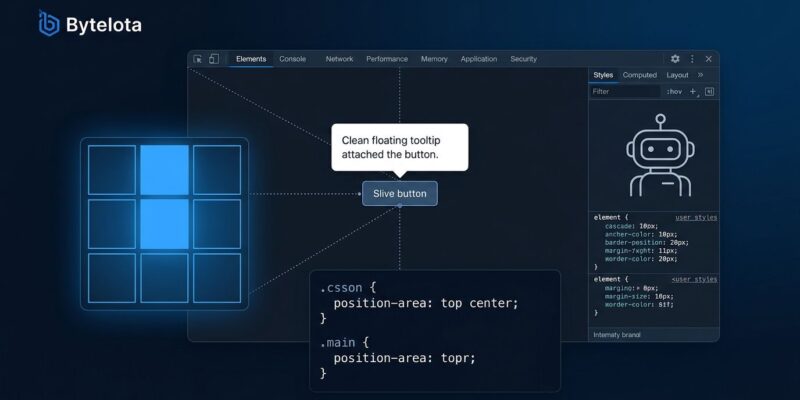
That changes with Chrome 155. In the Elements panel, click the inline swatch next to any position-area declaration in the Styles tab, and a visual grid opens inline. Click a cell or a span region; Chrome writes the shorthand. You can configure horizontal and vertical axes independently or together, toggle the self keyword for @position-try fallbacks, and let DevTools shorten verbose keywords automatically.
This is Chrome’s flexbox/grid inspector moment for anchor positioning. When Chrome shipped a visual flex/grid editor years ago, adoption of those layout systems accelerated measurably. Developers stopped avoiding them once they could see what they were doing. Expect the same dynamic here — anchor positioning usage will climb as this editor becomes the norm.
A minimal example of what you are now debugging visually:
/* Declare the anchor */
.btn {
  anchor-name: --btn;
}

/* Position the tooltip relative to it — no JavaScript needed */
.tooltip {
  position: fixed;
  position-anchor: --btn;
  position-area: top center;
}
If an element has multiple implicit anchors, right-clicking the popover adorner in the DOM tree lets you inspect and jump to any of them directly — a small but useful addition for complex anchor graphs.
AI Agents Can Now Read the CSS Cascade
The Chrome DevTools MCP server — Google’s official bridge between coding agents and the browser — gets a new tool this release: get_css_styles. Point it at a DOM element and it returns matched rules, inherited rules, pseudo-elements, @keyframes, and at-rules including @position-try, @property, and @function. The output is structured and paginated via pageSize and pageIdx parameters.
This matters because AI coding agents have a systematic blind spot when writing CSS. An agent generates a rule — color: red on a button — and the edit appears to succeed. But an existing .theme-dark button { color: white !important } in a theme stylesheet overrides it. The agent has no feedback mechanism. The visual result is wrong and there is no structured data to explain why.
get_css_styles closes that loop. An agent writes CSS, inspects the element via MCP, sees the cascade conflict in structured form, and fixes the specificity — without a human having to screenshot, paste, and explain. For teams running agentic test runners that compare visual state across code changes, this tool belongs in the workflow now.
Also in This Release
Three more updates worth noting. First, the DevTools MCP performance_stop_trace tool was crashing with a RangeError on traces larger than roughly 512 MB — a hard blocker for agent performance profiling on busy SPAs. The fix raises the default trace buffer to 1.2 GB and introduces a chunked parser that processes events in batches of 5,000 rather than loading the entire trace into a single V8 string.
Second, the Memory panel now surfaces dead context variables automatically. When a long-lived closure keeps a shared scope alive, any variables that no active code path accesses get highlighted and sorted by memory held — the classic JS memory leak pattern, now found for you instead of requiring manual heap snapshot analysis.
Third, the Network panel adds a visible warning when Disable cache is active and HTTP 103 Early Hints preloads are being silently dropped as a result. If you have ever wondered why your Early Hints optimization shows no effect in local development, this warning is the answer.
What to Do Now
Update Chrome to 155 or later. If you are building with tooltips, dropdowns, or popovers, open the position-area visual editor and spend five minutes with it — the anchor positioning model clicks much faster once you can see the grid. If your team uses an AI coding agent on frontend work, check whether your setup includes the Chrome DevTools MCP server; the get_css_styles tool is available now and worth wiring in.
Full release notes: developer.chrome.com/blog/new-in-devtools-november-2026. CSS anchor positioning deep dive: developer.chrome.com/docs/css-ui/anchor-positioning-api.