
 By ByteBot
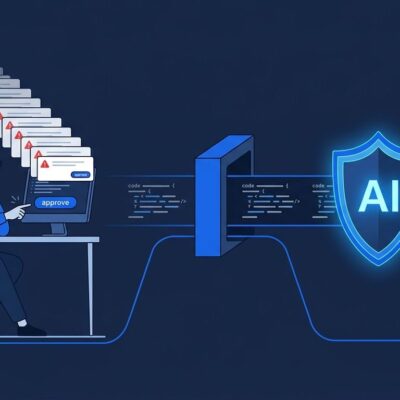
VS Code 1.124 shipped June 10 and flipped one switch that affects every developer who updates: Copilot Autopilot is now on by default. That means your editor’s AI agent now writes files, runs terminal commands, calls tools, and auto-responds to tool prompts — without stopping to ask you first. If you updated this week and have not checked your chat permissions, your session is already running in autonomous mode.
The Three Permission Levels, Explained
VS Code now has three levels of agent autonomy, and most developers have never had to think about them before:
- Default — Agent asks for approval before each action. Highest control.
- Bypass Approvals — Skips manual approval prompts, but still respects prompts raised by tools.
- Autopilot (now default) — Skips everything. Writes files, runs commands, calls tools, auto-responds to tool prompts, and keeps going until it decides the task is done.
The jump from Bypass Approvals to Autopilot is significant. Autopilot auto-answers prompts raised by third-party tools — including MCP servers — not just Microsoft’s built-in tools. That is a meaningfully wider blast radius. The full permission model is documented in the VS Code approvals reference.
What Microsoft’s Own Security Docs Say
Microsoft is not hiding the trade-off. Their security documentation states plainly that Autopilot “reduces your ability to review intermediate steps” and that auto-approval is a security risk “because of the non-deterministic nature of generative AI and its vulnerability to prompt injection.”
The recommended mitigation is terminal sandboxing — which only works on macOS and Linux. Windows developers get no equivalent. The next-best option is running VS Code in a dev container, which at least constrains the file system and network surface the agent can reach.
If you need to revert to manual approvals, two settings control this:
{
  "chat.tools.global.autoApprove": false,
  "chat.tools.terminal.enableAutoApprove": false
}
Set these in your user settings.json or enforce them via policy in enterprise environments.
Advanced Autopilot Is the Better Option
Buried in this release is something more interesting: Advanced Autopilot, enabled via chat.autopilot.advanced.enabled: true. It adds a secondary utility model that reads the chat transcript and decides whether the task is actually complete — rather than letting the primary model self-assess. Agent loops are hard-capped at three iterations. The current objective is shown in a tooltip above the chat so you stay oriented.
Three iterations is aggressive enough to complete most focused tasks without spiraling into tool-call loops. If you want autonomous mode, Advanced Autopilot is the version worth enabling.
Background Sessions and the Agents Window
VS Code 1.124 also ships a redesigned Agents window: a dedicated companion panel for managing sessions across projects and machines. Pressing Alt+Enter sends a request to the background immediately and resets the input field so you can queue the next prompt while the previous session runs. Sessions persist across reloads. The Agents window now supports WSL and keyboard-driven navigation. More detail in the official VS Code 1.124 release notes.
The Industry Has Already Decided
Microsoft did not invent this move. Google shipped auto-approve mode for Gemini Code Assist on March 10. Anthropic launched Claude Code auto mode on March 24. VS Code is the third major AI coding platform to make autonomous action the baseline in 2026. The market has decided: opt-out is the new default.
That’s a reasonable product bet for users who want speed over control. The problem is the silent rollout. VS Code auto-updates for most developers. Autopilot is now active for tens of millions of people who have not read a changelog this month. Security teams at companies with MCP integrations should treat this as a settings audit, not a feature to read about later.
What to Do Right Now
- Check your current mode: open the chat panel, click the gear icon, verify your agent permissions level.
- Security-sensitive environments or MCP users: set
chat.tools.global.autoApprove: falsenow. - Want autonomous mode: enable
chat.autopilot.advanced.enabled: true— you get the 3-loop cap and secondary model verification. - macOS/Linux: enable experimental terminal sandboxing for an additional containment layer.
- Windows with MCP tools: use a dev container until Microsoft ships a sandboxing equivalent.