 By ByteBot
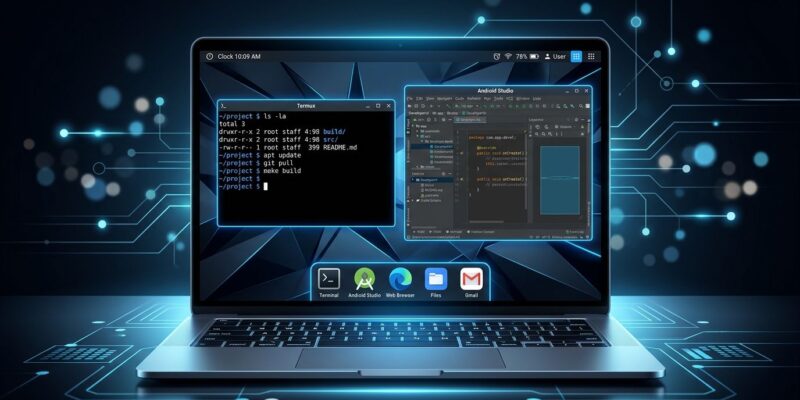
Googlebook OS launched a week ago. The marketing says “Android desktop for developers.” The hardware is genuinely impressive—40+ TOPS NPU, 2.8K OLED, Snapdragon X Elite or Intel Core Ultra across an $899–$1,299 price range. And then there’s the Linux situation. The new platform ships with Linux GUI app support worse than budget Chromebooks have offered for years, while simultaneously delivering one of the cleanest AI-assisted Android development workflows available. Both things are true, and you need to know which side of that line your workflow sits on.
Linux: Google Shipped a Regression
ChromeOS Crostini integrated Linux apps directly into the app drawer. Install a Linux GUI app on a Chromebook and it behaves like a first-class citizen: proper window, taskbar entry, normal keyboard and mouse input. On Googlebook OS, you get a terminal. That’s it.
Linux GUI apps install via the Terminal app’s Debian environment. They do not appear in the app drawer. They have no Android window integration. There are no taskbar entries. Early adopters report GIMP losing mouse input. When 9to5Google pressed Google on this, the response was blunt: “GUI apps aren’t the main focus” of the initial Linux release.
That’s a choice. It’s also a significant one. If your development workflow depends on VS Code running as a Linux desktop app, Inkscape, GIMP, or any other GUI tool that isn’t available as an Android APK, Googlebook OS in its current state is not for you. The pKVM hypervisor provides a solid, isolated Debian environment for CLI work—pulling repos, running builds, executing agents—but the gap between that and full Linux desktop integration is wide.
A fix is coming, presumably. Google has not given a timeline.
PWAs: The Compliance Wall
Chromebooks support manual PWA installation. Googlebook OS does not—yet. The platform restricts PWA installs to apps that fully comply with W3C specifications. In practice, the first high-profile casualty is Slack. Google’s official explanation: “Slack isn’t a compliant PWA.” Slack works as a PWA on Windows, macOS, and ChromeOS. On Googlebook, you install the Android app or go without.
For most developers, the Android Slack app is a reasonable workaround. But the pattern is worth noting: Slack won’t be the only non-compliant PWA you encounter. Google has confirmed that manual PWA install is coming to Chrome on Googlebook. No date.
Where Googlebook OS Delivers: Android-First Development
The Linux limitations are real, but they don’t define the full developer picture. For Android-native development, Googlebook OS is arguably the best laptop development environment available right now.
Antigravity 2.0 landed in the Play Store on September 30—five days before launch. The Googlebook-specific build interacts with the pKVM Linux environment, giving you a native Android UI that talks directly to the underlying Debian container. You can deploy Android apps straight to Googlebook hardware without USB or ADB fumbling. The same environment runs Antigravity, Claude Code, and Codex side by side.
Android CLI 1.0: Making Agents Useful on Googlebook
Stable since Google I/O, Android CLI 1.0 is what makes agentic Android development practical on Googlebook. It cuts token usage by 70% and completes tasks three times faster compared to standard LLM approaches, per Google’s internal benchmarks. Install it inside the Linux terminal:
apt-get install android-cli
android init
android studio check
From there, agents—whether Antigravity, Claude Code via BYOA in Android Studio, or Codex—get direct access to build diagnostics, Compose preview rendering, symbol lookup, and file analysis:
android studio analyze-file ./app/src/main/java/MainActivity.kt
android studio render-compose-preview
android studio find-declaration HotelDetailScreen
Eight new skills ship with 1.0: Display Glasses, Jetpack Compose Glimmer for XR, CameraX migration, Adaptive UI, and testing setup, among others. Add them via the Android CLI bundle in Antigravity (Settings > Customizations > Build With Google Plugins) or directly:
android skills add --skill=adaptive-uiWho Should Buy Googlebook OS Right Now
The honest answer is narrower than Google’s marketing suggests.
Buy it if: You write Android apps and want the development target to be the machine you’re coding on. You use AI coding agents (Antigravity, Claude Code, Codex) primarily through the terminal. You live in browser-based tools and don’t depend on desktop Linux apps.
Wait if: Your workflow depends on Linux GUI apps—VS Code desktop, GIMP, Inkscape. You rely on non-compliant PWAs like Slack through the web. You need proven platform stability; this OS is one week old.
Skip for now if: You’re a traditional Linux developer. ChromeOS Crostini still does Linux desktop integration better, at a lower price floor. Googlebook’s advantages are real, but they apply to a specific developer profile.
The hardware starts at $899 for the Acer Googlebook 14. That’s a reasonable price for a developer machine with this NPU and display quality. The question isn’t whether the hardware is worth it—it is. It’s whether the software catches up before your use case hits a wall.