 By
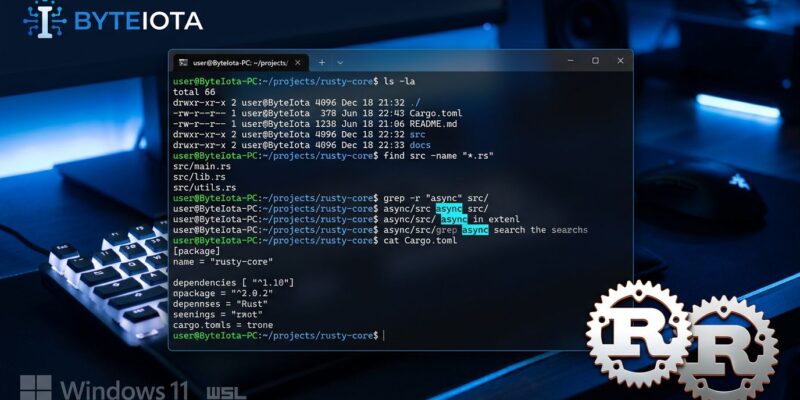
By Microsoft shipped Coreutils for Windows at Build 2026, and it does exactly what it says: 75+ Unix utilities — ls, grep, find, sort, cat — now run natively on Windows without WSL, Git Bash, or any compatibility layer. One WinGet command and you’re done. If you’ve spent time translating Linux README commands into PowerShell equivalents or cursing every time a shell script breaks on Windows, this is the fix Microsoft has been slowly building toward for years.
What You’re Actually Installing
Coreutils for Windows is Microsoft’s packaged build of uutils/coreutils — an open-source, cross-platform Rust rewrite of GNU Coreutils. It’s not a port of the original C codebase; it’s a modern reimplementation with memory safety built in. Microsoft packages it alongside findutils and grep into a single multi-call binary, installs it via WinGet, and maintains it on GitHub.
The command list covers what you’d reach for daily: cat, cp, mv, rm, ls, find, grep, sort, head, tail, wc, cut, tr, tee, sleep, pwd, hostname, and 60+ more. This isn’t GnuWin32 from 2004 — it’s Microsoft-owned, actively maintained, and installable from the official Windows package manager.
Install It in One Command
Open an elevated terminal and run:
winget install Microsoft.CoreutilsThe installer adds the utilities to your system PATH. To verify it took:
cat --versionYou should see a uutils version string. If you see something else — or nothing — read the next section before assuming it’s broken.
The PowerShell Collision Problem
Here’s the gotcha that will bite you: PowerShell has built-in aliases for cat, rm, ls, cp, mv, clear, and sort. Those aliases take priority over everything in your PATH. So when you type cat in a PowerShell session, you’re running PowerShell’s alias — not the Coreutils binary you just installed.
Diagnose it first:
Get-Command catIf the output shows CommandType: Alias, you’re hitting the PowerShell alias. Fix it for the current session:
Remove-Item alias:cat -ForceTo make the fix permanent, add that line to your $PROFILE for each conflicting command. Or sidestep the problem entirely: run Coreutils commands from cmd.exe or a non-PowerShell terminal. There’s also a known limitation with PSNativeCommandPreserveBytePipe — binary pipe compatibility breaks in PowerShell for piped workflows involving xargs and find. If your scripts depend on those pipelines, test them in cmd.exe first. PowerShell Is Fun has a detailed breakdown of which aliases conflict and how to handle each one.
What’s Not in the Box
Commands that depend on POSIX-only kernel concepts don’t exist on Windows and aren’t included: no chmod, chown, chroot, mkfifo, stty, tty, who, or id. If your scripts manipulate file permissions or call POSIX-specific syscalls, you still need WSL. Coreutils for Windows is a text-processing and file-navigation layer, not a POSIX compatibility shim. The full command list is on Microsoft Learn.
Coreutils for Windows vs. WSL vs. Git Bash
Before you install, answer one question: do you already have Git for Windows? Because Git Bash ships with most of these utilities already. If you’re a developer on Windows, you almost certainly have Git installed, which means you may have had grep and find available for years. Coreutils for Windows doesn’t replace those — it puts the utilities natively in your system PATH so you don’t have to open a Git Bash window.
WSL is still the better choice if you need a full Linux environment: package managers, distro toolchains, POSIX syscalls, or containers. Coreutils for Windows wins in specific scenarios: enterprise machines where IT blocks WSL, CI/CD runners where spinning up WSL adds overhead, and shared scripts that need to work natively across Windows and Linux without branching logic. The native grep and find implementations bypass WSL’s kernel translation overhead — for file-heavy operations on large codebases, the performance difference is real.
The Bigger Pattern
XDA Developers called it accurately: Microsoft finally admitted Linux won. Coreutils for Windows is one piece of a longer arc — PowerShell adopted POSIX-ish conventions, WSL brought actual Linux distros to Windows, and now the everyday Unix command set is first-class on the platform. At Build 2026, Microsoft also announced WSL Containers (native OCI without Docker Desktop) and Windows Developer Configurations. The direction is clear.
Verdict
Install it if: you work on a Windows machine without WSL access, you maintain CI pipelines on Windows runners, or you just want grep and find available natively. Fix your PowerShell aliases after installing — don’t assume it just works in PS out of the box. And don’t expect it to replace WSL for Linux-heavy workflows.
It’s a convenience layer. A well-built, officially supported, Microsoft-maintained convenience layer — but a convenience layer. That’s not a knock. Manage expectations, and it’ll save you real time.