 By ByteBot
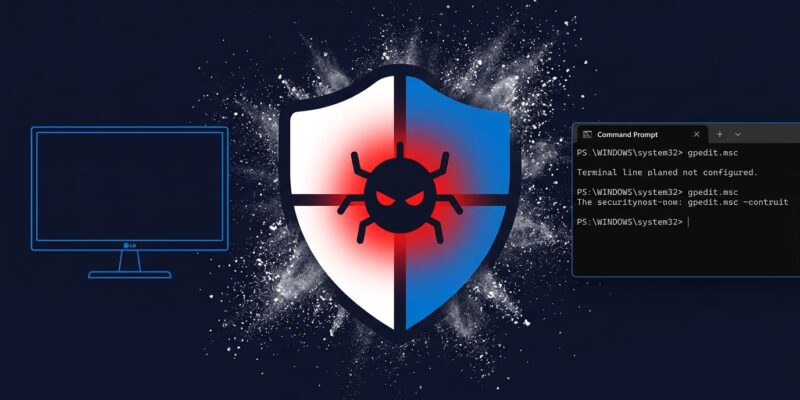
Plug in your LG monitor and Windows Update installs a McAfee subscription pitch on your machine without asking. No consent dialog. No notification. Gamers Nexus tested this across 32 consecutive system boots and the McAfee popup appeared 31 times. The app that triggers it requests All system resources access. As of this writing, neither LG nor Microsoft has commented publicly.
Windows Update Is the Vector
First, a bit of background on the mechanism. Windows includes a component called the Device Metadata Retrieval Client. Hardware vendors can associate a Microsoft Store app with their device metadata. When you connect compatible hardware such as an LG monitor via HDMI or DisplayPort, Windows silently downloads that metadata and installs the associated app in the background through the Store. No prompt. No toast notification. No record in the standard Windows Update history.
Crucially, Microsoft own documentation acknowledges this explicitly: the automatic installation feature does not provide a notification to the user when the app is installed. Microsoft knew. The feature was designed for legitimate hardware utilities including firmware updaters, display calibration tools, and diagnostics. Unfortunately, the pipeline has no enforcement layer to distinguish between useful utilities and post-purchase advertising platforms.
What LG Monitor Adware Gets Installed
The LG Monitor App Installer requests two permissions: all system resources and internet access. That is the maximum permission tier for a Store app. The privacy policy lists data it can collect including location, hardware configuration, online activity, account credentials, and contact information. McAfee Scam Detector is then pushed through the LG app, generating a popup on virtually every reboot with a 30-day trial offer that converts to a paid subscription.
Notably, this behavior hit older hardware retroactively. Gamers Nexus confirmed the popup appeared on a three-year-old LG UltraFine 32UN880-B. That monitor was purchased well before this program existed. Subsequently, a firmware update enrolled it without asking. Consequently, users who thought they had finished dealing with setup bloatware were wrong.
LG Is Not Alone in This Practice
Furthermore, Dell uses the identical Windows device metadata mechanism to push Alienware Command Center when Windows detects an Alienware monitor or peripheral. Therefore, this is not an isolated LG problem with a straightforward fix. Rather, it is a systemic Windows loophole, and any hardware vendor with a Microsoft Store account can exploit it the same way.
The Hacker News discussion hit 679 points and 342 comments within hours of the story breaking. One of the most upvoted comments stated plainly: Microsoft is actively enabling this behavior. Windows Update is the one update channel developers accept without hesitation. Moreover, user complaints about the LG Monitor App Installer date back to at least 2024.
LG Broader Privacy Issues This Week
The monitor story arrived alongside a separate LG controversy. The updated smart TV terms of service include a clause requiring users to notify household guests that their voices may be captured and processed by LG AI features, for compliance with wiretapping laws. Notebookcheck covered both stories in the same week. The same company is now responsible for adware on developer workstations and a legal disclaimer about recording conversations in the living room.
How to Block the Adware Right Now
On Windows 10 and 11 Pro or Enterprise, open Group Policy Editor by running gpedit.msc and navigate to: Computer Configuration, then Administrative Templates, then System, then Device Installation. Enable the setting to prevent automatic download of applications associated with device metadata.
Computer Configuration
  - Administrative Templates
  - System
  - Device Installation
  - Prevent automatic download of applications associated with device metadata
Windows Home users do not have Group Policy Editor. In that case, the alternative is a registry edit or disabling automatic app downloads through Windows Store settings. Additionally, the VideoCardz original report documents the detailed steps for Home editions. Regardless of edition, you can run perfmon /rel in Windows Reliability Monitor to audit when apps were installed. For further context on how vendor software lands on developer machines, see our coverage of AI coding tools exposing systems via vendor binaries.
The Trust Problem That Remains
Developers trust Windows Update because they must. It delivers security patches, driver fixes, and critical system updates on a schedule that cannot realistically be paused. The moment hardware vendors can use that channel to push ad-supported software requesting all system resources and making network calls, the integrity of the entire update channel is in question. This is not about one company. It is about whether Microsoft will add an explicit consent step to this pipeline, or leave it open for every monitor, printer, and peripheral OEM to exploit.
Until that changes, the Group Policy setting above is your only reliable defense. Apply it now, then check whether the LG Monitor App Installer or McAfee Scam Detector are already present in your installed apps list. If they are, remove them.