 By ByteBot
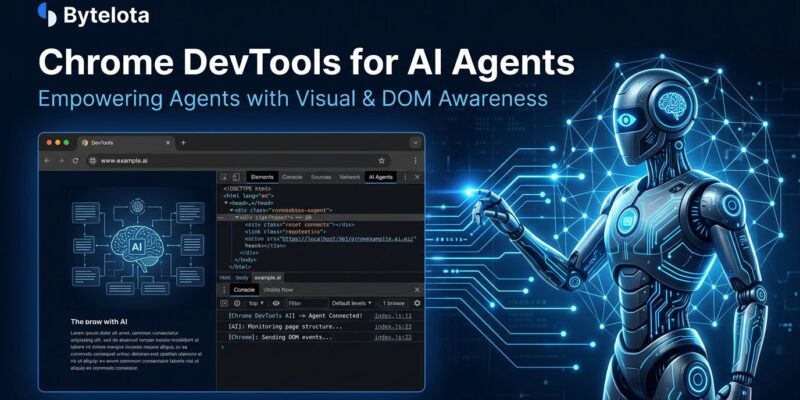
AI coding agents write code, run commands, and make confident assertions about what your app should do — but until now, they couldn’t actually see the browser. That blind spot ends with Chrome DevTools for Agents 1.0, which shipped at Google I/O 2026. Google’s stable release gives agents official, maintained access to Chrome’s full debugging stack via an MCP server, a CLI, and pre-built agent skills. It works today with Claude Code, Gemini CLI, Codex, Cursor, and more than 20 other agents.
The Blind Spot Problem
The typical AI-assisted front-end workflow has a structural flaw: agents write the code, but a human has to relay what actually happened in the browser — pasting console errors, describing visual glitches, manually running Lighthouse and handing over the scores. That relay step is friction that kills the feedback loop.
Chrome DevTools for Agents closes it. Your coding agent can now open URLs, interact with forms, capture console output with source-mapped stack traces, run Lighthouse audits, record performance traces, and take heap snapshots — all without you acting as an intermediary. Addy Osmani called it giving your AI “real eyes” on the browser, and that description holds up.
Three Ways to Connect Your Agent
The 1.0 release ships with three access layers, each suited to different workflows:
- MCP server — Full access to all 29 tools across 7 categories. Best for interactive debugging sessions where the agent needs to reason across multiple DevTools surfaces.
- CLI — Token-efficient batch scripting. Lower overhead for automated pipelines where you’re running the same checks repeatedly.
- Agent skills — Pre-built, targeted capabilities that teach agents when and how to use specific tools. Skills exist for accessibility audits, performance debugging, and memory leak analysis.
The 7 tool categories span input (clicks, form interaction), navigation, performance (Core Web Vitals tracing), network analysis, debugging (console, screenshots), emulation (device, network, CPU, geolocation), and memory (heap snapshots). One important distinction: lighthouse_audit covers accessibility, SEO, and best practices scores — but not performance. For LCP, CLS, and INP data, use performance_start_trace separately. That difference trips people up.
Auto-Connect: The Feature Most Devs Will Miss
The most underreported capability in this release is auto-connect. Since Chrome M144, you can hand off your existing authenticated browser session to the agent instead of making it open a sandboxed instance. Add the --autoConnect flag, and the agent operates inside your already-logged-in Chrome — no re-authentication required.
That matters more than it sounds. Debugging an authenticated dashboard, an admin panel, or a post-login flow previously meant either the agent couldn’t reach it, or you had to feed credentials into the agent’s own session. Auto-connect bypasses both problems.
LY Corporation Cut Manual Analysis by 96%
Before Chrome DevTools for Agents, LY Corporation’s performance auditing was a manual slog: navigate CrUX, run Lighthouse locally, pull PageSpeed Insights data, cross-reference against internal business dashboards, then write the report. Specialized knowledge required, every time.
After building an automated pipeline with Chrome DevTools for Agents, the numbers shifted sharply. Manual analysis effort dropped 96–98%. The central analysis team recovered 8.3 hours per month. The compounding win: each product team can now generate expert-level performance reports independently, without relying on specialists.
Add It to Your Agent in One Command
Setup is straightforward. Pick your agent and run the matching command:
# Claude Code
claude mcp add chrome-devtools npx chrome-devtools-mcp@latest

# Gemini CLI
gemini mcp add chrome-devtools npx chrome-devtools-mcp@latest

# Codex
codex mcp add chrome-devtools -- npx chrome-devtools-mcp@latest
If you’re on Antigravity 2.0, skip all of that — Chrome DevTools for Agents ships pre-bundled. For Gemini CLI users who want agent skills alongside the MCP server, use gemini extensions install --auto-update https://github.com/ChromeDevTools/chrome-devtools-mcp instead. Full setup documentation lives in the official get-started guide.
What This Means for the AI Coding Stack
This release completes a loop that has been open since AI coding assistants became serious tools. Write → deploy → verify → fix can now run agent-driven, end to end. That does not eliminate the need for human review, but it eliminates the part where a human manually relays browser state to an AI that cannot see it.
The extension debugging capabilities and WebMCP tool inspection suggest Google is not stopping here. The browser is becoming a first-class surface for agent workflows, not an afterthought. Chrome 149 ships broader extension debugging support — that is the one to watch next.