 By
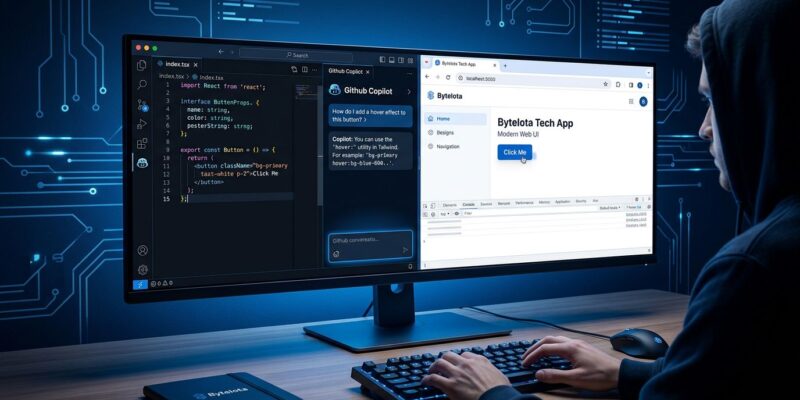
By GitHub flipped a switch on July 1. Copilot browser tools in VS Code went from opt-in preview to on by default for every user running a Copilot subscription. That means the agent embedded in your editor can now open pages, click buttons, capture console errors, and take screenshots — without you enabling anything. If you updated to VS Code 1.127 and haven’t revisited your settings, the agent is already running with browser access.
What Changed (And Why It Matters More Than You Think)
This wasn’t a new feature launch. Browser tools existed in preview behind an opt-in flag. The change is that GitHub removed the flag and turned it on for everyone. That’s the story.
The shift matters because of scale. VS Code has over 75 million installs. GitHub Copilot has tens of millions of subscribers. This is the largest single rollout of browser-agent capability to date — larger than Safari MCP Server, larger than WebMCP in Chrome 149. Most users won’t notice it happened, which is exactly why you should.
What the Agent Can Actually Do
Browser tools give Copilot agents a real browser, not a scraper. In practice that means:
- Open URLs and navigate between pages
- Click, type, hover, drag, and handle dialogs
- Read page content and capture console errors
- Take screenshots and feed them back into the conversation
- Run multi-step scripted flows
The workflow that actually changes is the debug loop. Before: you wrote code, manually opened the browser, saw an error, copy-pasted it back to the agent. Now: the agent writes code, opens the browser itself, sees the error, and fixes it — then asks if the result looks right. For frontend and full-stack developers, that’s a meaningful reduction in friction.
A practical starting point: ask your agent to open localhost and check for console errors. It will do exactly that, then tell you what it found.
The Isolation Model — Read This Before You Worry
The natural concern with an AI agent that can browse the web is access. GitHub’s isolation design addresses most of it, and it’s worth understanding before you dismiss the feature or accept it uncritically.
Your tabs stay private. The agent cannot read or interact with any tab you opened unless you explicitly click “Share with Agent.” You can revoke that access anytime. Nothing in your existing browsing session is exposed by default.
Agent tabs are isolated. When the agent opens a page itself, it runs in a fresh session with no access to your cookies, stored credentials, or session data. Multiple parallel agents each get their own isolated tab context — they can’t read each other’s sessions either.
Sensitive permissions require explicit approval. Camera, microphone, location, clipboard reads — the agent cannot grant these to itself. Each requires your explicit per-site approval.
One thing to be clear-eyed about: if you click “Share with Agent” on a tab containing sensitive data, the agent will read it. The isolation model protects you by default. It does not protect you from yourself.
Enterprise Teams: Check These Settings Now
If you manage VS Code in a regulated environment or handle sensitive internal tooling, browser tools going default-on is your action item this week. Three settings to configure via your VS Code enterprise AI policy:
workbench.browser.enableChatTools— org-wide on/off for browser toolschat.agent.allowedNetworkDomainsandchat.agent.deniedNetworkDomains— control which URLs agents can reach; wildcards supported; deny list always takes precedencechat.agent.networkFilter— enables network domain filtering
If you have internal tooling on hostnames your developers access daily, set deny rules for those now. Don’t wait for a policy review cycle — this is already live.
What Else Shipped in VS Code 1.127
Browser tools aren’t the only change in 1.127. Terminal commands on macOS and Linux now execute in a sandbox by default — network access is blocked and filesystem access is restricted. The agent has to ask for approval before running anything that needs elevated access. The agent UI also got a significant overhaul with session groups, drag-and-drop organization, and CI failure banners for open pull requests.
On the model side, GitHub also added Kimi K2.7 Code on July 1 — the first open-weight model available in the Copilot model picker. It runs a trillion total parameters with 32 billion activated per token (mixture-of-experts architecture), hosted on Azure. It’s off by default for Business and Enterprise plans — admins must enable it explicitly.
What to Do Today
Individual developers: update VS Code to 1.127 and try the browser tools — they work. Enterprise admins: review workbench.browser.enableChatTools and configure domain filters before your next deployment. The feature is well-designed, but “on by default” means the window for proactive configuration is now, not later.