 By ByteBot
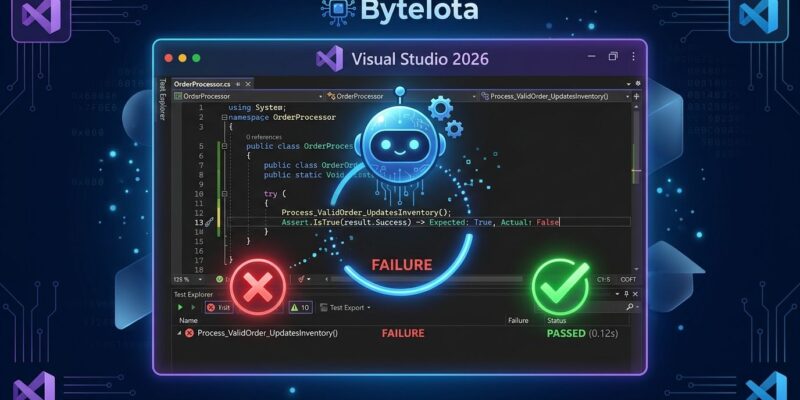
Visual Studio 2026 version 18.11.1 shipped on October 20 with a Debugger Agent that automates the full unit-test fix loop — right-click a failing test, and Copilot debugs it, hypothesizes the root cause, edits the code, and re-runs until the test passes. The same update silently erased every custom-model configuration from the previous version. If your team uses Ollama, a private endpoint, or any BYOK setup, it stopped working the moment you upgraded. No error message. No migration wizard.
Debugger Agent for Unit Tests
The headline addition is the Debugger Agent’s new integration with Test Explorer. Right-click any failing test and choose Debug with Copilot. The agent pulls workspace context and repo history from GitHub or Azure DevOps, forms a root cause hypothesis, applies targeted code edits, runs the test under the debugger, and delivers a summary of what it changed and why. The full loop that used to take 5–15 minutes of manual breakpoint stepping now runs unattended.
It supports XUnit, NUnit, and MSTest. What it does not do is debug arbitrary running code — this is specifically for unit test failures. That is a meaningful constraint: the agent has a clear success criterion (test passes) that it can validate automatically. Open-ended debugging does not have that, which is presumably why Microsoft scoped it this way first. The Debugger Agent documentation covers the full list of supported test frameworks and known limitations.
PerfTips Connect to the Profiler Inline
Debug-time PerfTips — the elapsed-time annotations Visual Studio shows inline in the editor — now directly trigger the Copilot Profiler Agent. Click a timing signal while debugging and Copilot analyzes elapsed time, CPU usage, and memory behavior, then suggests targeted optimizations. There is also a new Profile with Copilot command in Test Explorer that lets you profile a specific test without leaving the test runner or opening Diagnostic Tools separately. The @profiler agent can generate BenchmarkDotNet benchmarks and analyze .NET Counters for ASP.NET services.
BYOK Is Broken — Here Is How to Fix It
This is the part that will catch teams off guard. The October update rebuilt BYOK on the new Agent (Preview), which runs on the GitHub Copilot SDK. The old Ask mode and Agent mode custom-model configurations were removed in the process. There is no migration wizard and no obvious error — Copilot simply falls back to the GitHub-hosted model, or stops responding from your custom endpoint, with no indication of why.
If your team configured Ollama, a custom OpenAI-compatible endpoint, or a private Azure deployment, you need to re-add those entries manually. The path is Chat → Model Picker → Manage Models. You can also reach the same settings via Tools → Options → GitHub Copilot → (General). Supported providers after re-adding are Microsoft Foundry, OpenAI, Anthropic, and Ollama, with custom endpoint support for OpenAI and Ollama. Neowin has additional coverage of the scope of the breakage.
This is the second consecutive update with a BYOK breaking change — 18.10 introduced the capability, and 18.11 broke it. The underlying reason is that Microsoft is actively migrating Copilot in Visual Studio onto the new GitHub Copilot SDK harness, and that migration is not backward compatible. More disruptions are possible until the transition stabilizes.
Smaller Additions Worth Knowing
Two minor but useful changes round out the update. First, Ctrl+Numpad 1–9 now switches directly to the nth open tab in the active document group — predictable ordering, preview tabs excluded. Ctrl+Shift+PgUp/PgDn reorders tabs, and Ctrl+NumPad0 resets zoom. Second, Fonts and Colors settings now participate in Visual Studio’s settings.json model, meaning you can version-control your theme, share it with your team, or diff color changes like any other config file.
What to Do
Update to 18.11.1 — not 18.11.0, which had a compose debugging regression. After updating, go to Chat → Model Picker → Manage Models immediately and verify your custom model configurations are still there. They probably are not. Re-add them before your team hits the issue in a live session. Then pick a test suite with some known failures and try the Debugger Agent. Full details are in the official Visual Studio 2026 release notes. It is the most practically useful new capability in this release and the quickest way to see whether the agent approach delivers on the pitch.