 By ByteBot
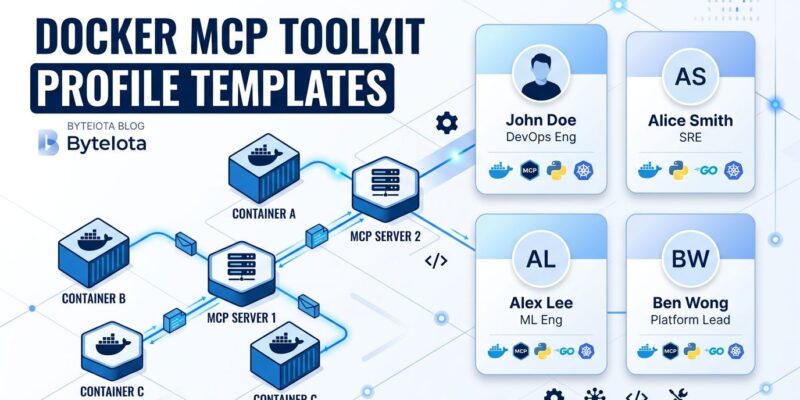
Docker’s June 2026 Desktop update ships profile templates for the MCP Toolkit, and they do exactly what the name implies: collapse a 20-to-30-minute manual server configuration grind into a two-minute template selection. If you’ve been putting off setting up MCP tooling because the catalog felt overwhelming, this removes that excuse. Open the Profiles tab, pick a template, and you’re running.
What Profile Templates Actually Are
The Docker MCP Catalog now has over 300 verified servers. That breadth is great once you know what you want. Before you know what you want, it’s a paralysis machine. Profile templates solve the discovery problem by bundling servers for specific workflow archetypes.
The June release ships three starter templates:
- Web Development — GitHub and Playwright pre-configured, aimed at frontend work and browser automation
- Data Analysis — Spreadsheet, API, and visualization servers bundled together
- Cloud Infrastructure — Cloud operations tooling, pre-assembled
These aren’t opinionated in a bad way. They’re sensible defaults for the most common MCP use cases. You can always add or remove servers after loading the template.
How to Use Them
The path through the GUI is three steps: open Docker Desktop and select MCP Toolkit, navigate to the Profiles tab, and select a template card. Docker creates the profile with the bundled servers already configured. See the MCP Profiles documentation for the full reference.
Once inside the profile, the Overview tab shows your active servers, secrets configuration, and connected clients. The Tools tab lists every available tool from every server in the profile — you can enable or disable individual tools without removing the whole server. That granularity matters: if you’re using the web-dev template but don’t want Playwright’s screenshot tool exposed, you disable it in two clicks without breaking the GitHub integration.
The CLI Path
If you’d rather not touch the GUI, the CLI covers everything. After creating a profile — from a template in the UI or via docker mcp profile create — activate it through the gateway:
docker mcp gateway run --profile web-devFor any MCP-compatible client — Claude Desktop, Cursor, VS Code — wire it up with this config:
{
  "servers": {
    "MCP_DOCKER": {
      "command": "docker",
      "args": ["mcp", "gateway", "run", "--profile", "web-dev"],
      "type": "stdio"
    }
  }
}
The gateway routes tool calls to the right containerized server. The full MCP Gateway documentation covers transport options including streaming on a custom port.
Security: You Don’t Give It Up for Convenience
Templated or custom, every Docker MCP profile runs with the same security constraints. Each server gets its own container: 1 CPU ceiling, 2GB RAM max, and zero host filesystem access by default. OAuth is handled centrally by the MCP Toolkit — your credentials don’t get passed raw to individual servers. The MCP Gateway sits between your AI client and the tools, intercepting and blocking malicious tool calls before they execute.
This matters for teams that raised MCP security concerns earlier this year. The containerization story is now tight enough for IT to sign off on.
Building Your Own Profiles
Templates are a floor, not a ceiling. Once you’ve loaded one, modify it freely: add servers from the Docker Hub MCP Catalog, remove what you don’t need, and toggle individual tools on or off. Save the result as a named profile and use it every time.
The profile-as-configuration-unit is the useful primitive here. Your team’s specific MCP setup — GitHub with only PR-related tools enabled, plus your internal Postgres MCP server — can live in a profile that anyone on the team activates with one command. Docker hasn’t shipped team profile sharing yet, but the CLI structure is clearly built for it.
What Else Shipped in This Update
The June release also adds Qwen3.5 support to Docker Model Runner. That pairs directly with the MCP Toolkit: run Qwen3.5 locally via Model Runner, give it tools via MCP profiles, and you have a fully local AI agent stack running inside Docker. No external API calls, no data leaving your machine.
Bottom Line
If you haven’t set up Docker’s MCP Toolkit yet, the template release is the right moment. Check the full June 2026 release notes for version details, then update Docker Desktop and navigate to MCP Toolkit → Profiles. Pick the Web Development template if you’re not sure where to start — GitHub and Playwright cover most of what developers actually need from MCP today. Customize from there.